
New Blazers: Start Here
Welcome Students and Employees to the Blazer Tech Onboarding Guide
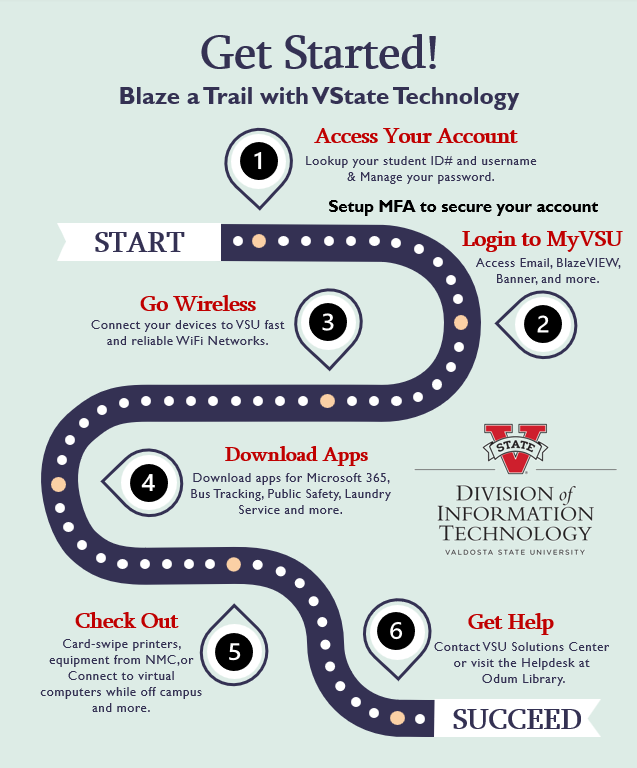
Blaze your trail by following the steps below to get the most out of the technology resources available to you here at Valdosta State University.
Get Started:
- Access your Account Info & Manage your Password
- Log in to MyVSU
- Go Wireless
- Download Apps
- Use Computers & Equipment
- Get Help
STEP 1
 Access Your Account Information
Find your VSU ID Number and Username
- View your Acceptance and MyVSU Account Emails
- Use the VSU ID Lookup Tool
- Employees, Retirees, Alumni:
Contact Human Resources or the One Card Office


STEP 2
Go to MyVSU & Setup MFA
Use your VSU email address (username@valdosta.edu) and password to log into MyVSU to access your VSU Email, Banner, Online Student Account, BlazeVIEW, and much more. The first time you login, you will be prompted to set up multifactor authentication (MFA).
For assistance with setting up your MFA for your Online Student Account, contact the VSU Bursary.
STEP 3
Go Wireless
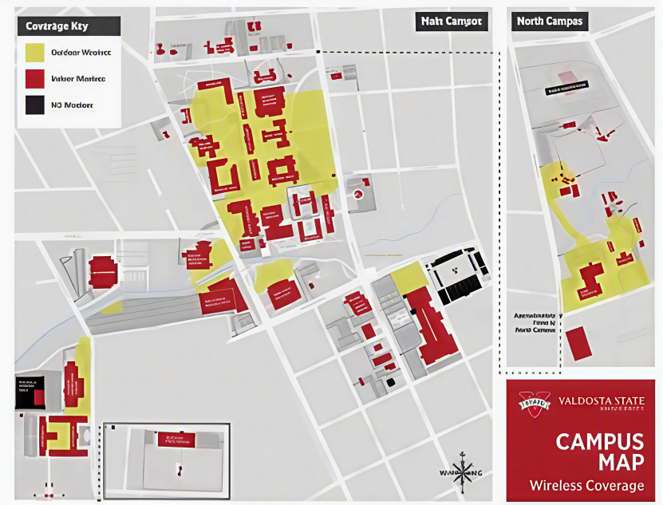
Set up access to VSU's eduroam wireless network (even before arriving on campus). Complete a one-time setup and your smartphone, laptop, and mobile device will automatically connect anytime you are in range of the secure and encrypted eduroam network on VSU's campuses, at all USG institutions, and participating institutions around the world!
OPTIONAL STEPS TO YOUR SUCCESS

STEP 4 - Get Apps
Download apps like Microsoft 365, the Bus App, Laundry App, Metered Parking App, Athletics App and more.
STEP 5 - Use Computers & Equipment
Learn about classroom computers, printers, virtual computers, loaner equipment, and more.
Use your MyVSU Username (without @valdosta.edu) and Password to sign into campus technologies.
EMPLOYEES: Sign in to your office computer for the 1st time
STEP 6 - Get Help If You Need IT
- Contact VSU Solutions Center
- Visit the Helpdesk at Odum Library
- Submit a tech support ticket