Employees: Computers and Equipment
Technology that Works for You
Learn about the computers, telecommunications, and other equipment available to Valdosta State University employees to help get work done. Feel free to bookmark this page.
Looking for Classroom Computers and Campus Technologies?
Get to Know Your Office Equipment
Most employees' offices are equipped with the following technology:
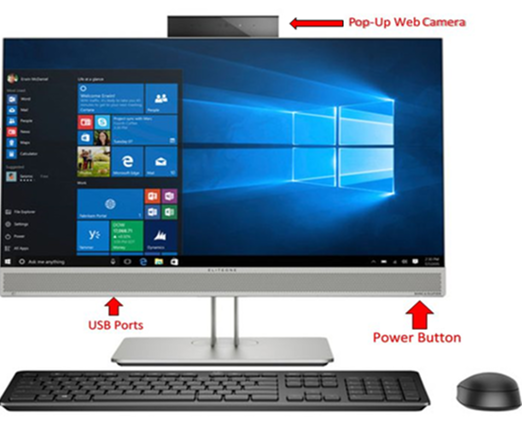
- an All-in-One (AIO) Desktop Computer with the following:
- Microsoft Windows operating system
- Microsoft 365 software, Firefox and Chrome web browsers, among other applications
- Built-in Microphone and Camera
- Connection to a hard wired network jack
- a Mouse and Keyboard
- a Desk Telephone or Headset -if requested
|
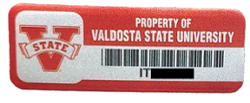
Device IT Tag Number |
Jump to: Save your Work | Sign Out
Sign In to Your Office Computer
Use your MyVSU Username only (without @valdosta.edu) and Password.
First Time Logging In? Do this to setup your desktop computer account:
You must use a Windows office computer that is connected to the VSU wired network to complete these steps. If you are a student employee, verify with your department that the computer you are trying to log into is not restricted to faculty- and staff-only use.
1. At the computer login screen, enter vsuguest (Username) and guest (Password).
2. Double-click the Apply for Desktop Logon Account icon. The FireFox web browser will open.
3. Enter your full VSU Email Address and Password. Select No when prompted to Stay signed in?
4. From the Welcome page, submit answers to all prompted questions regarding your position. If necessary, consult with your department for this information. 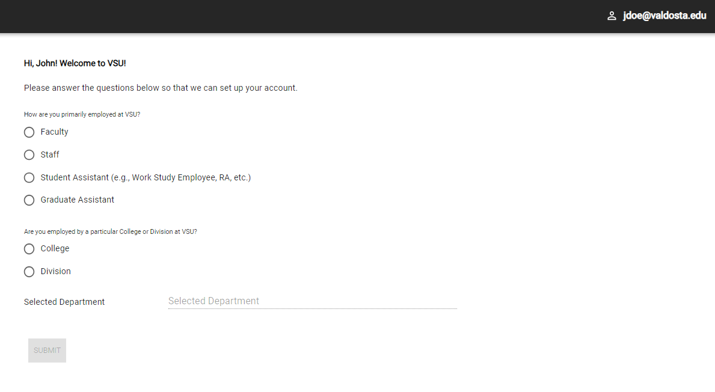
5. Once setup is complete:
- Wait 15 minutes, then close the web browser and sign out of the VSUGuest account.
- Now sign into the office computer using your VSU username only (omit @valdosta.edu) and password.
If you are unable to log in, call VSU Solutions Center at 229.245.4357.
Save your Work
Employees are responsible for backing up their own files that are saved locally on their office computers. To prevent data loss, employees are strongly advised to save work files to OneDrive, Teams or othe approved cloud-based storage solutions instead of saving directly to their office computers. For security and virus protection, plugging in USB drives into VSU machines are not encouraged.
Sign Out
Sign out of the computer when finished so no one else can gain access to your account.
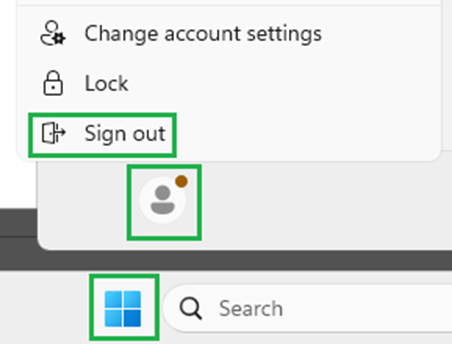
Click the Windows logo > your Profile Name > Sign Out.
| Learn about VSU Virtual Computer Labs and Remote Desktop Access |
While off-campus, you can connect to a VSU virtual computer to access on-campus, licensed software, the V Drive network, and for some, access to specialized business and financial applications.
Additionally, with prior approval, you can also remote in to your office computer to access software that is not installed on the virtual lab computers. It's a two-step process: You would first connect to a virtual computer and then remote in to your office computer.
Local Administrative Access
Based on policies set by the Georgia Cybersecurity Board and the University System of Georgia (USG), users of institutional-owned devices are not permitted to have administrative access that would permit the user to manage or install applications or operating systems, configure specific settings or other functions, or modify accounts that are managed by Information Technology
Business-Case Exceptions:
| Apply for an exception to gain administrative access to your work computer. |
| Learn more about the VSU Employee Phone System |
Microsoft Teams Phone is a secure, cloud-based calling solution that integrates with our existing Teams application. Much like a traditional phone, you can call and receive calls from landlines and mobile phones, transfer calls, and place them on hold, as well as make normal Teams to Teams calls.
Employees have the following options:
- Use Teams on your office computer and a headset, or use your device's speaker and microphone
- Use a VSU-issued Teams-certified desk phone
- Use your smartphone, laptop, or tablet that has internet access and the Teams app installed
Employees/Departments may request or purchase additional technology such as:
- network printers
- document scanners
- additional monitors
- laptop computers or Mac computers
- external hard drives
- external microphones and cameras
- employee cell phones
- other specializied equipment
Visit IT Procurement and Asset Management to learn how to purchase equipment and how the IT division refreshes/replaces equipment on a scheduled basis.
Technology Needs Assessments: At least once a year, the IT division will consult with individual colleges and departments to determine if their technology needs are being met and if necessary, implement an acquistion plan.
Division of Information Technology
- Learn more about us
- Phone: 229.245.4357
- Fax: 229.245.4349
VSU Solutions Center
Mon-Thurs: 8am to 6pm
Fri: 8am to 5pm
Eastern Standard TimesMailing Address
1500 N Patterson St
Valdosta, GA 31698