Administrative Access to VSU Computers
What is Local Administrative Access?
Local admin privileges grant a user extensive control over a computer's operating system and its resources, including the ability to install software, modify system configurations, and manage user accounts. While useful for administrators, this special access may also present significant security risks if not managed properly. Furthermore, most users do not need local administrative access to perform their normal duties.
VSU Policy
Valdosta State University has implemented a policy restricting local administrative (admin) access to institutional computers with exceptions, following mandates from the Georgia Cybersecurity Board and the University System of Georgia (USG). Restricting access provides several benefits to the university's security posture:
- Lowers risk of malware infections
- Ensures antivirus and other protections remain active
- Reduces an attacker’s ability to exploit vulnerabilities
- Helps to secure the manageability of u
In addition to workstation computers, state-managed laptops used exclusively on the university’s wireless networks may qualify for local administrative rights if they meet security requirements, including running the university-supported antivirus and device management software. Laptops storing sensitive data, such as HIPAA (health records), FERPA (student records), financial data (GLBA), payment card information (PCI), personally identifiable information (PII), or any other sensitive classified data, are not eligible.
Exceptions may be granted for employees who present a valid business case, such as approved research projects or specific IT roles. Requests must be renewed annually, and all approved users must use multi-factor authentication to access applications and data.
- Click the EXCEPTIONS: REQUEST ADMIN ACCESS tab to learn how to request access if needed.
Exceptions
Although typical user-level access is sufficient for most faculty, staff, and students to carry out their daily computing tasks, exceptions for local administrative access may be considered, but are not guaranteed, for individuals who present a business case based on these general guidelines:
- Approved institutional Review Board research projects. (IRB number required.)
- Supervisor-approved business case relating to ongoing work duties.
- Staff members designated or approved by the CIO/CISO for information technology roles.
- Classified government research data that requires administrative rights to access.
Request Local Admin Access
Submit a ticket at MyVSU > View All > Technology Services Portal
- Include a descriptive business purpose or job responsibility that requires privileged access to your computer.
- Your request will be reviewed by Information Security and an email will be sent to you and your supervisor. A supervisor's approval is required before the request is processed.
- Requests must be renewed annually during the exception request period. Failiure to do so will result in the revocation of local administrative privileges.
Approved Access:
- Click the SIGN IN WITH ADMIN ACCESS tab to learn how to sign in to your Valdosta State University computer with your special priviledged access.
Sign in to your _Admin Account with Duo
When approved for local administrative access, you will receive an enrollment and activation email from Duo Security that will include a link to setup a Duo Mobile account on your iOS or Android device such as a smartphone. Duo Mobile is the multifactor authentication (MFA) application that you must use to authenticate your login to your approved administrative account, also known as your _admin account. IMPORTANT: Duo Mobile is different and separate from the Microsoft Authenticator application that is used to log in to your MyVSU accounts.
Set up your Duo account
You’ll need an iOS or Android smartphone or mobile tablet (e.g., iPad or Galaxy tablet)
- On your mobile device, open the Duo Security email and click the enrollment link. If you do not have your VSU email set up on your mobile device, you can log into MyVSU through your mobile device's web browser.
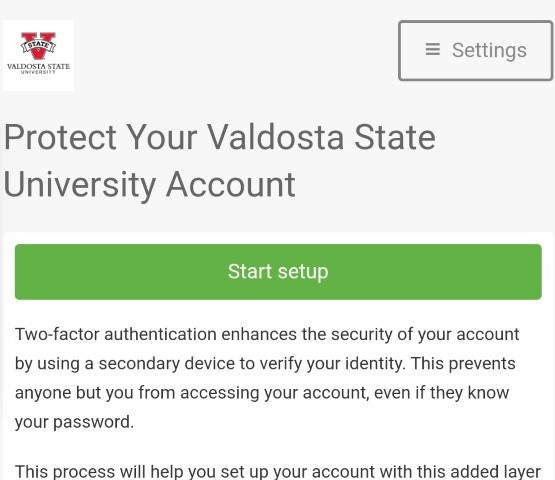
- An enrollment window will open in your web browser. Click the Start setup button.
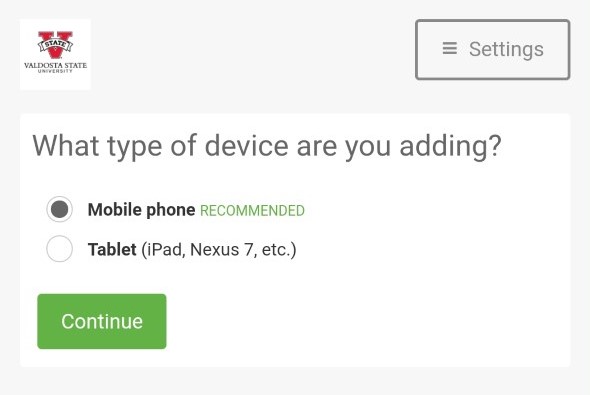
- Select Mobile Phone (Recommended) or Tablet and click Continue.
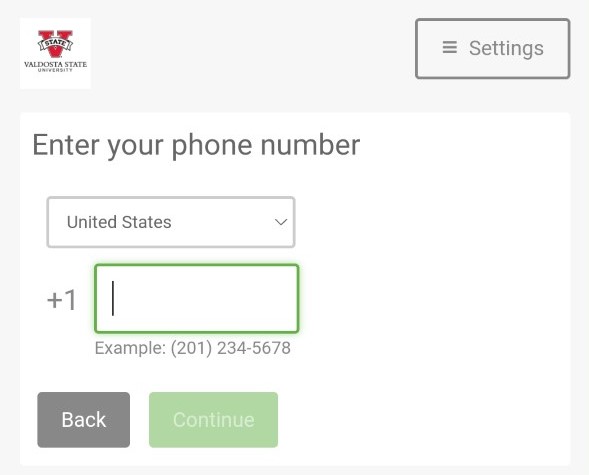
- Enter your mobile phone number and click Continue.
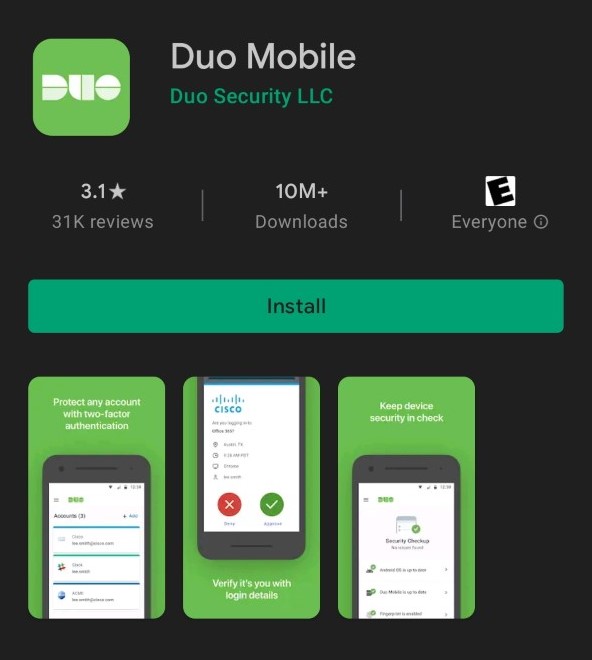
- Install the Duo Mobile app from the Google Play Store or Apple App Store.
Duo Screenshots 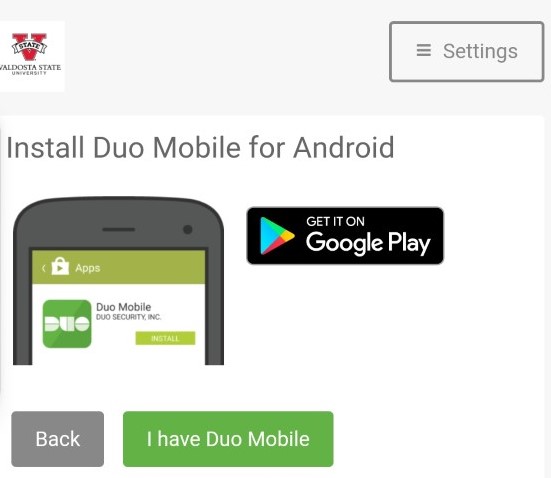
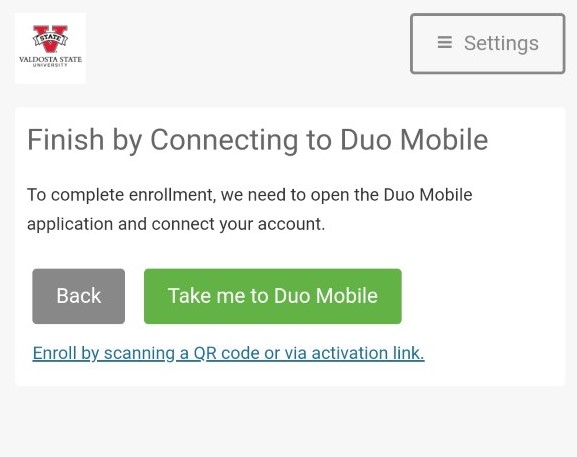
- Return to the enrollment window and click the Take Me to Duo Mobile button.
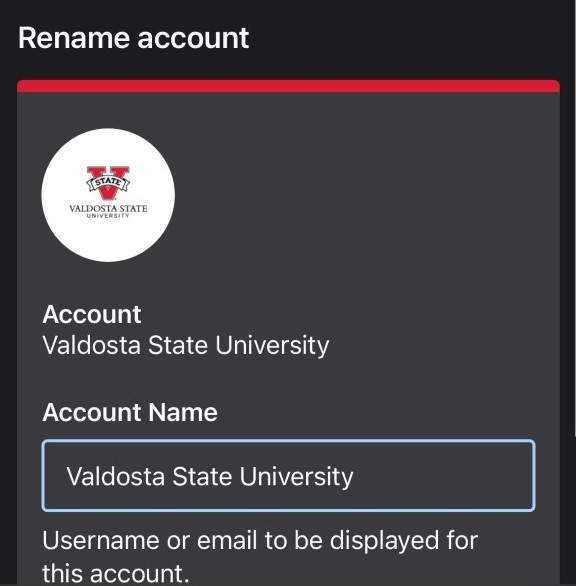
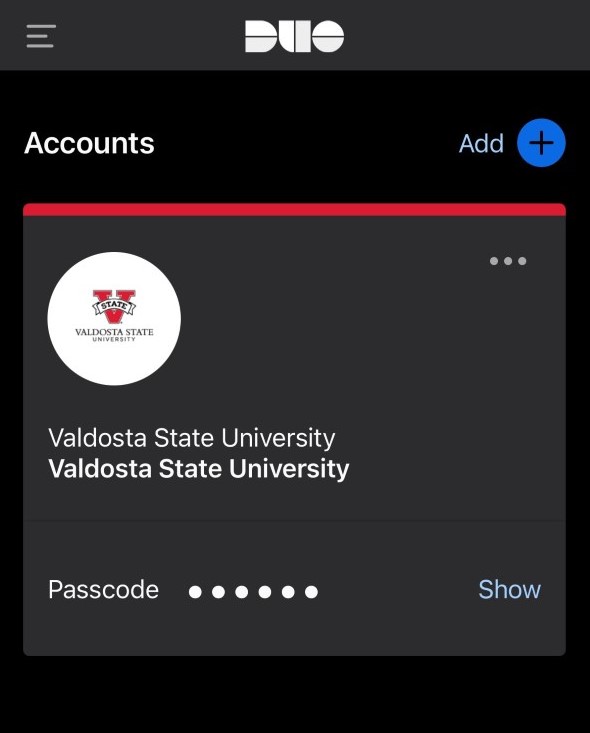
- Click Next to enter the name of your account/organization. Valdosta State University should be the default.
Duo screenshots 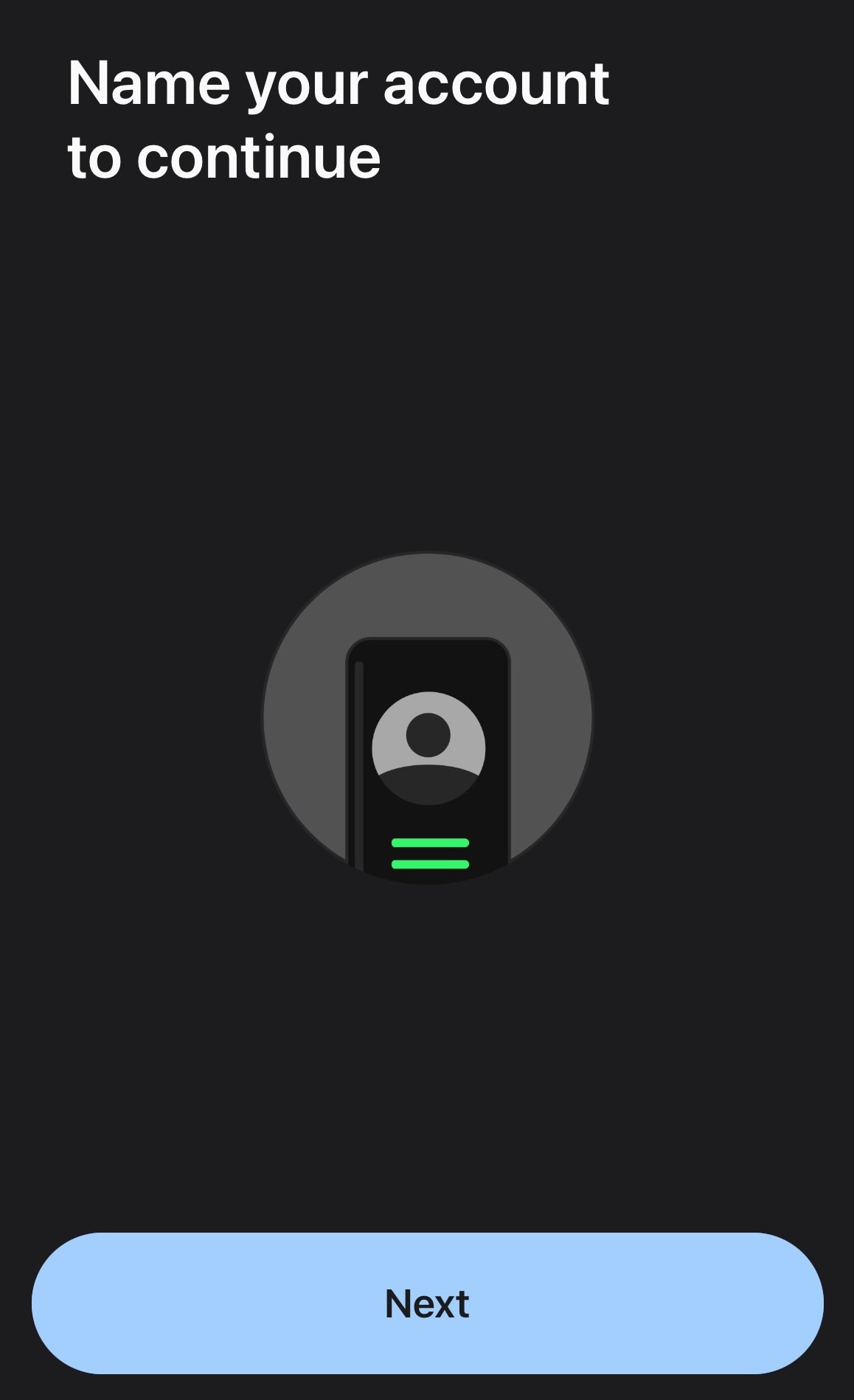
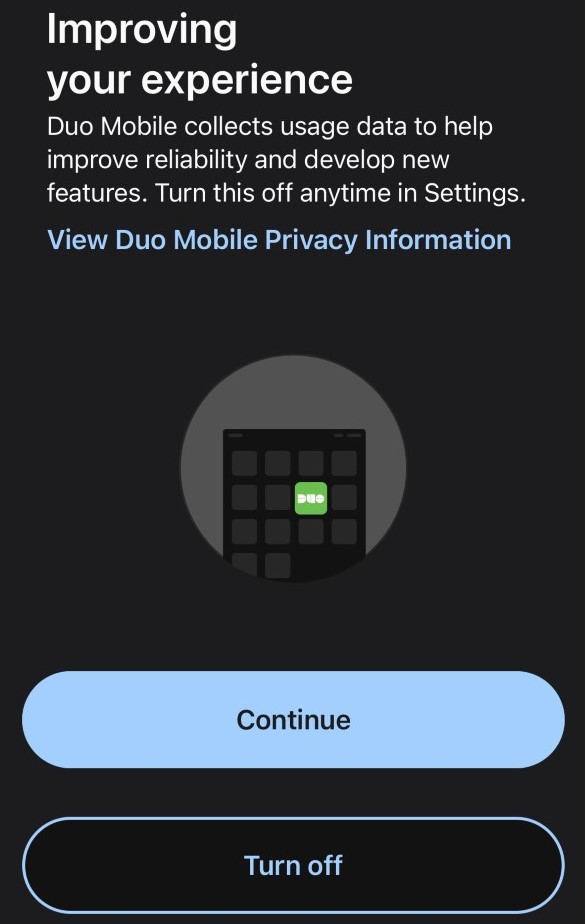
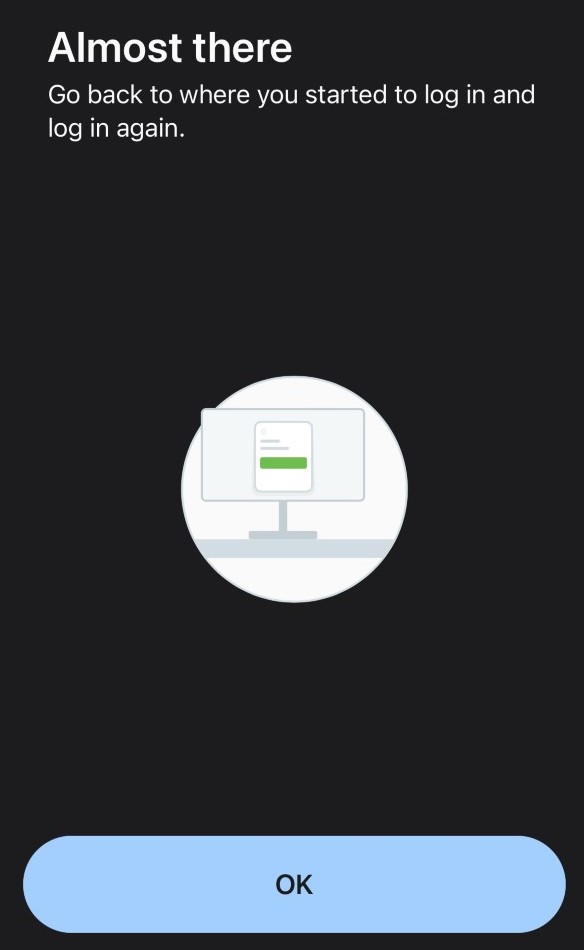
- Finally, you will have an opportunity to view or skip a brief tutorial.
Duo screenshots 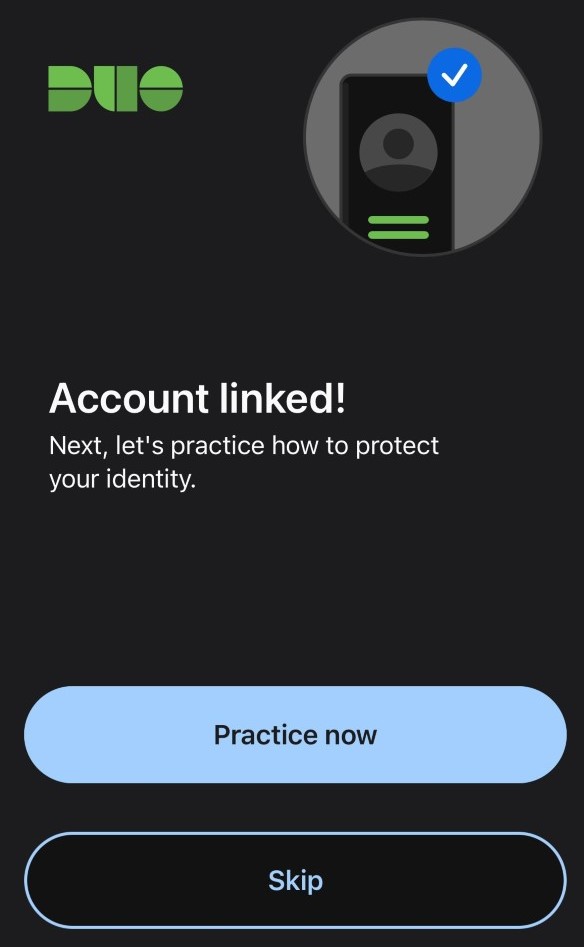
Log in to your computer with admin access
You You must have an iOS or Android device and the Duo Mobile app installed and activated. For Mac computer users, you must use a hard-wired network connection to log in.

- On your computer login screen, enter your VSU username_admin (example: sdoe_admin) and password. For Mac users, your username may be different.
- Click Send Me a Push from the Duo pop-up window.
- On your mobile device, tap Approve to authenticate your login.
Get Help
Contact VSU Solutions Center for help with:
- Setting up your initial Duo account
- Acquiring a temporary passcode
- Initiating a new Duo enrollment email
- Adding or removing a device
VSU Policy
Valdosta State University has implemented a policy restricting local administrative (admin) access to institutional computers with exceptions, following mandates from the Georgia Cybersecurity Board and the University System of Georgia (USG). Restricting access provides several benefits to the university's security posture:
- Lowers risk of malware infections
- Ensures antivirus and other protections remain active
- Reduces an attacker’s ability to exploit vulnerabilities
- Helps to secure the manageability of u
In addition to workstation computers, state-managed laptops used exclusively on the university’s wireless networks may qualify for local administrative rights if they meet security requirements, including running the university-supported antivirus and device management software. Laptops storing sensitive data, such as HIPAA (health records), FERPA (student records), financial data (GLBA), payment card information (PCI), personally identifiable information (PII), or any other sensitive classified data, are not eligible.
Exceptions may be granted for employees who present a valid business case, such as approved research projects or specific IT roles. Requests must be renewed annually, and all approved users must use multi-factor authentication to access applications and data.
- Click the EXCEPTIONS: REQUEST ADMIN ACCESS tab to learn how to request access if needed.
Exceptions
Although typical user-level access is sufficient for most faculty, staff, and students to carry out their daily computing tasks, exceptions for local administrative access may be considered, but are not guaranteed, for individuals who present a business case based on these general guidelines:
- Approved institutional Review Board research projects. (IRB number required.)
- Supervisor-approved business case relating to ongoing work duties.
- Staff members designated or approved by the CIO/CISO for information technology roles.
- Classified government research data that requires administrative rights to access.
Request Local Admin Access
Submit a ticket at MyVSU > View All > Technology Services Portal
- Include a descriptive business purpose or job responsibility that requires privileged access to your computer.
- Your request will be reviewed by Information Security and an email will be sent to you and your supervisor. A supervisor's approval is required before the request is processed.
- Requests must be renewed annually during the exception request period. Failiure to do so will result in the revocation of local administrative privileges.
Approved Access:
- Click the SIGN IN WITH ADMIN ACCESS tab to learn how to sign in to your Valdosta State University computer with your special priviledged access.
Sign in to your _Admin Account with Duo
When approved for local administrative access, you will receive an enrollment and activation email from Duo Security that will include a link to setup a Duo Mobile account on your iOS or Android device such as a smartphone. Duo Mobile is the multifactor authentication (MFA) application that you must use to authenticate your login to your approved administrative account, also known as your _admin account. IMPORTANT: Duo Mobile is different and separate from the Microsoft Authenticator application that is used to log in to your MyVSU accounts.
Set up your Duo account
You’ll need an iOS or Android smartphone or mobile tablet (e.g., iPad or Galaxy tablet)
- On your mobile device, open the Duo Security email and click the enrollment link. If you do not have your VSU email set up on your mobile device, you can log into MyVSU through your mobile device's web browser.
- An enrollment window will open in your web browser. Click the Start setup button.
- Select Mobile Phone (Recommended) or Tablet and click Continue.
- Enter your mobile phone number and click Continue.
- Install the Duo Mobile app from the Google Play Store or Apple App Store.
Duo Screenshots - Return to the enrollment window and click the Take Me to Duo Mobile button.
- Click Next to enter the name of your account/organization. Valdosta State University should be the default.
Duo screenshots - Finally, you will have an opportunity to view or skip a brief tutorial.
Duo screenshots
Log in to your computer with admin access
You You must have an iOS or Android device and the Duo Mobile app installed and activated. For Mac computer users, you must use a hard-wired network connection to log in.
- On your computer login screen, enter your VSU username_admin (example: sdoe_admin) and password. For Mac users, your username may be different.
- Click Send Me a Push from the Duo pop-up window.
- On your mobile device, tap Approve to authenticate your login.
Get Help
Contact VSU Solutions Center for help with:
- Setting up your initial Duo account
- Acquiring a temporary passcode
- Initiating a new Duo enrollment email
- Adding or removing a device
Division of Information Technology
- Learn more about us
- Phone: 229.245.4357
- Fax: 229.245.4349
VSU Solutions Center
Mon-Thurs: 8am to 6pm
Fri: 8am to 5pm
Eastern Standard TimesMailing Address
1500 N Patterson St
Valdosta, GA 31698